Test in the Web Simulator
You can test your add-on without a physical device by using the web simulator in the Alexa developer console. The simulator maintains the session with your add-on so you can test multi-turn conversations and complete workflows. You interact with your add-on using text, and you can view response details and device logs to troubleshoot issues. You can also use the simulator to connect your add-on to a physical device to test on a device.
Before you begin
You must deploy your add-on before you can test it in the simulator. For deployment steps, see one of the following:
- Category action add-on—Deploy the add-on (Category Action)
- Category MCP add-on—Connect your MCP server to Alexa+
- MCP Toolkit add-on—Connect your MCP server to Alexa+ (MCP Toolkit)
Open the simulator
Log in to the developer console to access the simulator.
After you are logged in to the console, do one of the following:
- From the My Add-ons page: Find your add-on and click Test in Simulator.
- From anywhere in the console: Click the Simulator button in the left-hand navigation.
- Direct URL: Navigate to Alexa+ Simulator.
If you did not open the simulator from a specific add-on, click the Add-on drop-down in the top bar and select the add-on you want to test.
Simulator interface
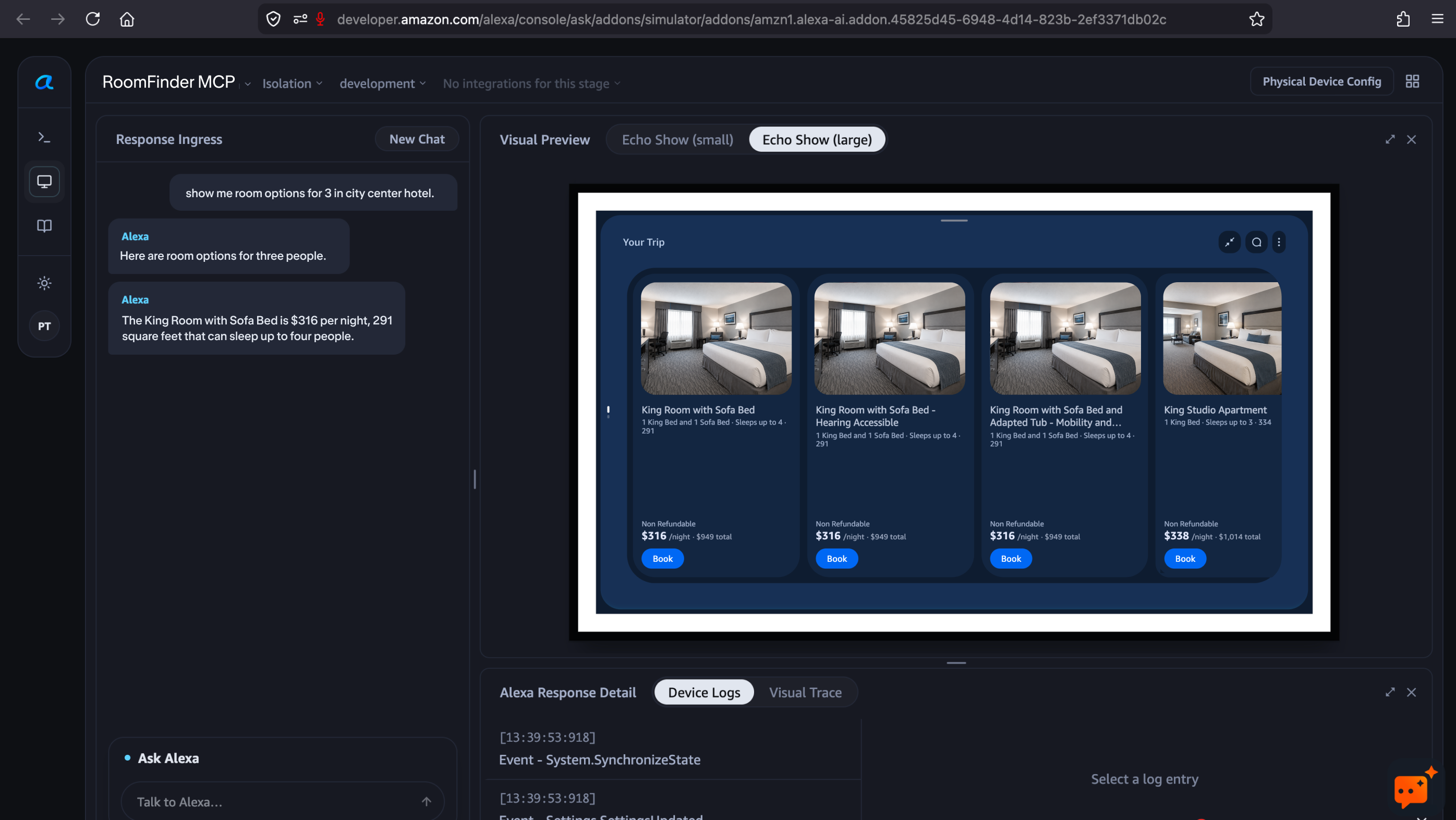
The simulator interface contains the following elements:
| Element | Location | Description | |
|---|---|---|---|
| Add-on menu | Top left | Select the add-on you want to test. | |
| Mode menu | Top bar | Choose between Isolation and Global testing modes. | |
| Stage menu | Top bar | Select the add-on stage to test against (development, certification, certified, or live). | |
| Integration menu | Top bar | Select the specific integration to test. | alexaplus-sdks/Alexa-simulator |
| Response Ingress | Left panel | Displays the conversation between you and Alexa. Includes a New Chat button to start a new session. | |
| Ask Alexa | Bottom of left panel | Text input field where you type your test utterances. No wake word is needed. | |
| Visual Preview | Right panel (top) | Shows how content renders on an Alexa device screen. Toggle between Echo Show (small) and Echo Show (large) to preview different screen sizes. | |
| Response detail | Right panel (bottom) | Contains three tabs: Alexa Response Detail, Device Logs, and Visual Trace. Use these to inspect events, directives, and visual rendering details. | |
| Physical Device Config | Top right | Opens the Configuration Override panel to route test sessions to a physical Alexa device. |
Select the testing mode
Use the Mode drop-down in the top bar to choose a testing mode:
- Isolation — Routes all requests exclusively to your add-on, bypassing Alexa's natural routing. Use this mode to validate your add-on's tools and responses without interference from other add-ons or built-in Alexa capabilities.
- Global — Full Alexa+ routing is active, the same as in production. All other add-ons and built-in capabilities are available alongside yours. Use this mode to verify that Alexa+ correctly selects your add-on based on customer intent.
Select the add-on stage
Use the Stage drop-down in the top bar to choose which version of your add-on to test against:
| Stage | Description |
|---|---|
| development | Your in-progress add-on. Only accessible to your developer account. Use this while building and iterating. |
| certification | The version currently under review for certification. |
| certified | The most recently certified version, before it has been published live. |
| live | Your published production add-on. Mirrors the exact experience customers receive. Use this to verify post-publish behavior. |
Test on a physical device
You can route your simulator session to a physical Alexa device for on-device testing.
- Click Physical Device Config in the top-right corner of the simulator.
- In the Configuration Override panel, select your device from the Device drop-down.
- Verify the Integration and Integration Stage under Set Overrides.
- Click Save.
After saving, test utterances you send through the simulator are routed to the selected device. This lets you validate voice interaction quality, multimodal UI rendering, and end-to-end latency on a real device.
Related topics
- Test Your Category Action Add-on
- Test Your Category MCP Add-on
- Test Your MCP Add-ons
- Alexa+ Add-on Certification Guidelines
Last updated: Jul 16, 2026