
Use Chrome DevTools for App Profiling
React Native for Vega supports Chrome DevTools (CDT) for debugging Fire TV apps. The Chrome browser includes CDT, which lets developers inspect, debug, and profile apps. For CDT basics, visit the React Native debugging documentation.
This page explains how to set up a CDT debugging in Vega Studio for both the Vega Virtual Device and Fire TV Stick.
Run your React Native for Vega app
Follow these steps to start debugging:
-
Open the command palette in Vega Studio:
Mac: Shift+Command ⌘+P
Linux: Ctrl+Shift+P
-
Enter Vega App: Run the current Vega app.
This command:
- Starts the metro packager (a JavaScript bundler for React Native)
- Sets up port forwarding between your device and host computer
- Launches your app on your device
Start CDT
Start CDT from either Vega Studio or Chrome browser. Vega Studio offers and integrated experience, while Chrome provides direct browser access and browser-specific tools. Use the certified version within Vega Studio for best results. Complete the following steps:
In Vega Studio
- Connect your Vega device to your development machine.
- In Visual Studio Code (VS Code), go to the Vega Studio panel.
- Select your project from the Vega section.
-
Select
Debugfrom the Build Modes section.Note: CDT for React Native is only supported on Debug builds. -
Select a Fire TV Stick device or Vega Virtual Device from the Devices section.
-
Run your app for debugging.
a. Follow the steps in Run your React Native for Vega app.
b. Wait for the app to run successfully.
c. Make sure the React Native Packager is connected.
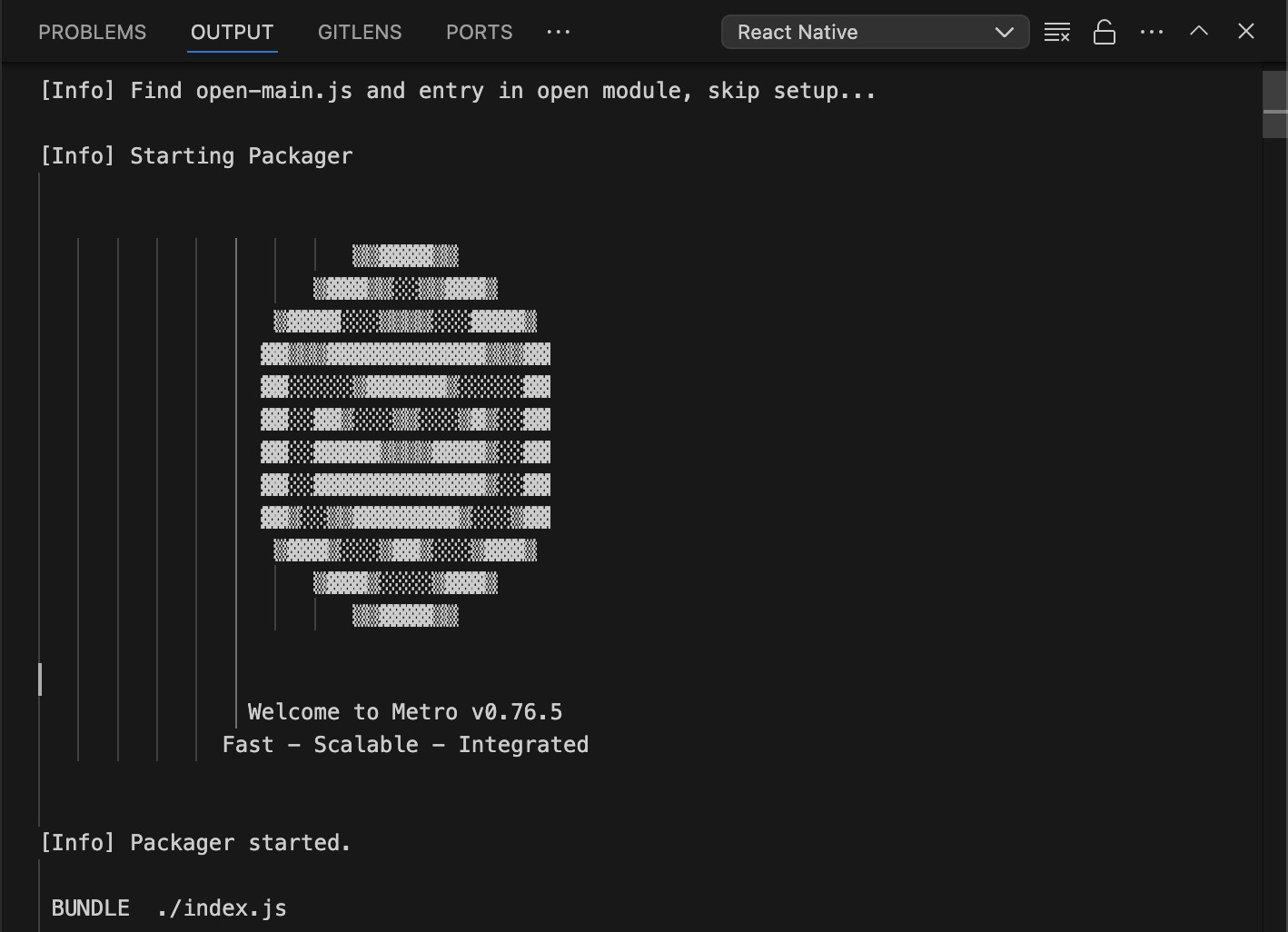
d. Navigate to VS Code Output window.
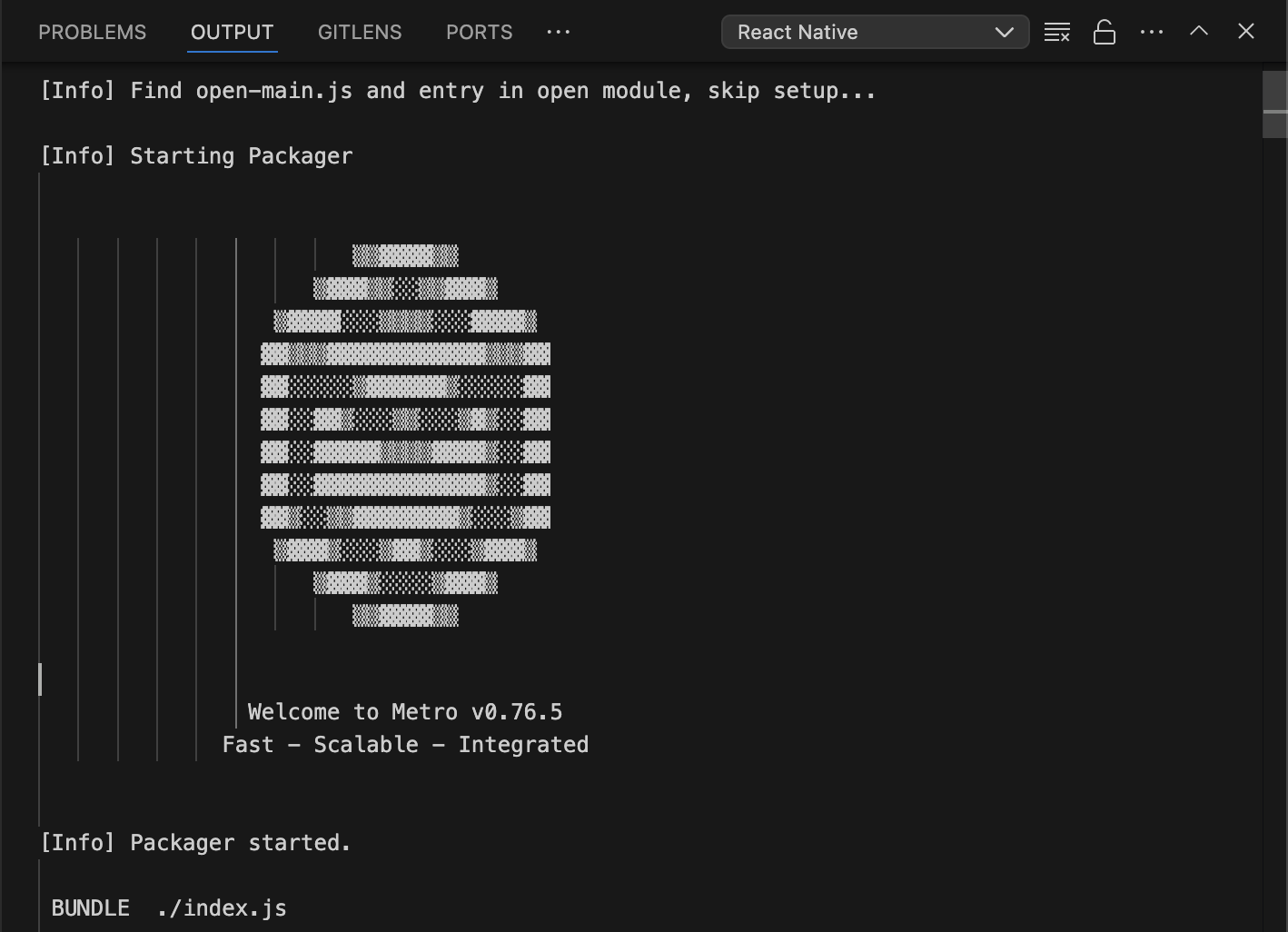
e. Select React Native from the drop-down list.
-
Launch CDT.
a. Open the command palette.
- Mac: Shift + Command ⌘ + P
- Linux: Ctrl + Shift + P
b. Enter Vega: Launch Dev Tools and press return for Mac or Enter for Linux.
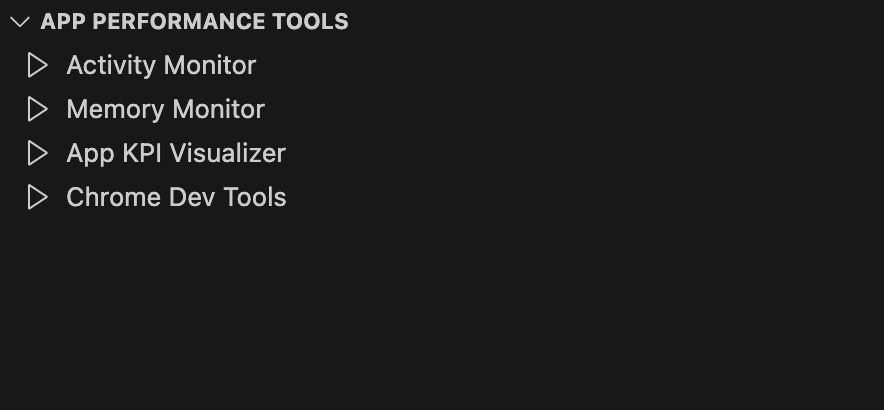
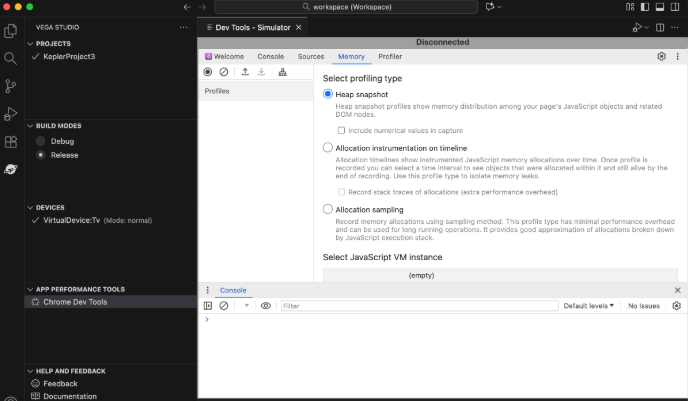
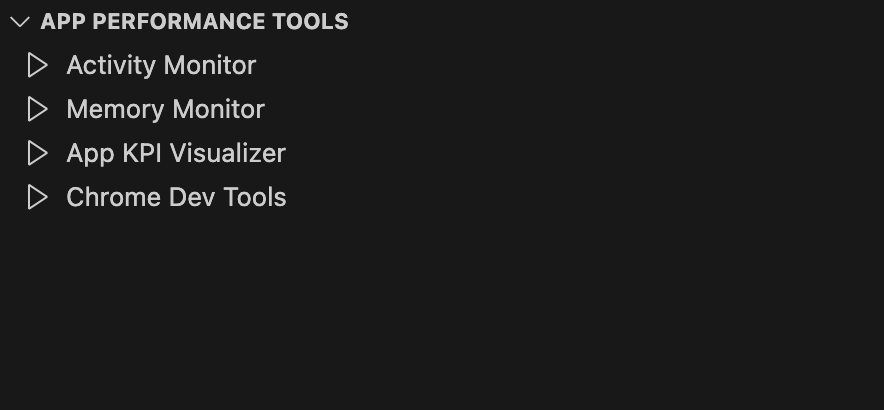
You can also select the Chrome Dev Tools from Vega Studio > App Performance Tools.
-
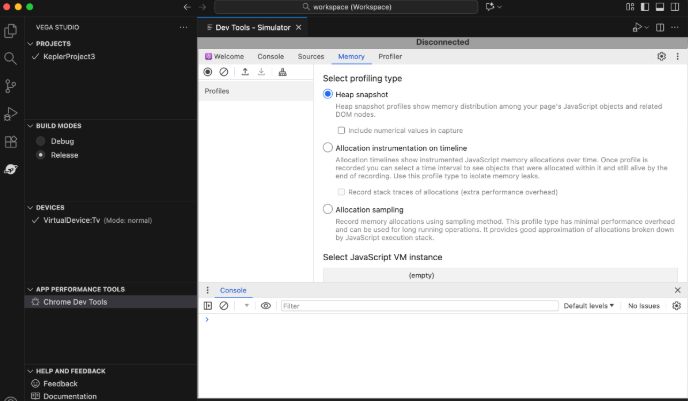
When you start CDT, a progress bar appears in a new window. When loading completes, CDT opens in that same window.
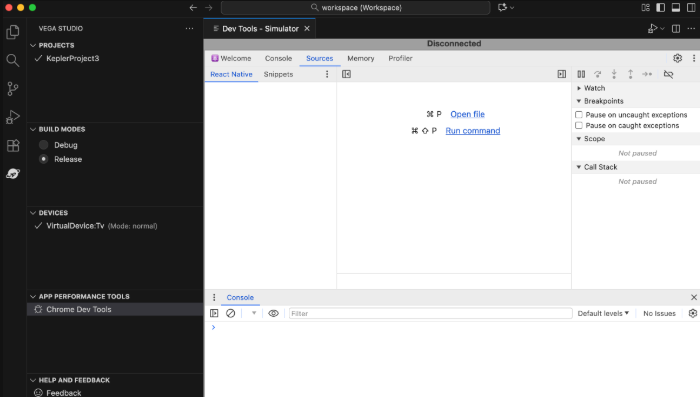
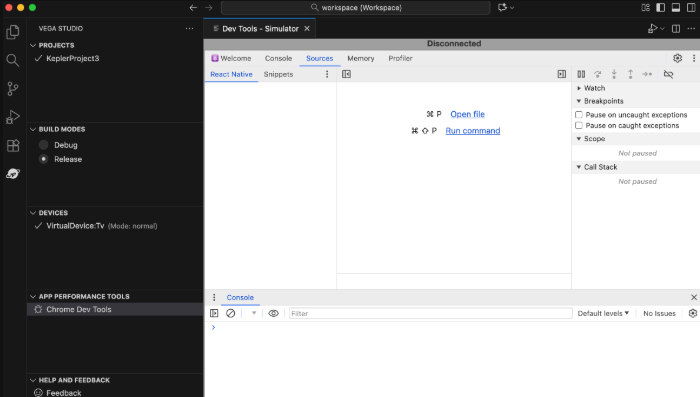
If CDT fails to connect to the app on your device, you see Disconnected at the top of the window.
If CDT disconnects due to Splash Screen display, app restart, or other reasons, close the Dev Tools tab in Vega Studio. Then follow the steps in Start CDT to reconnect.
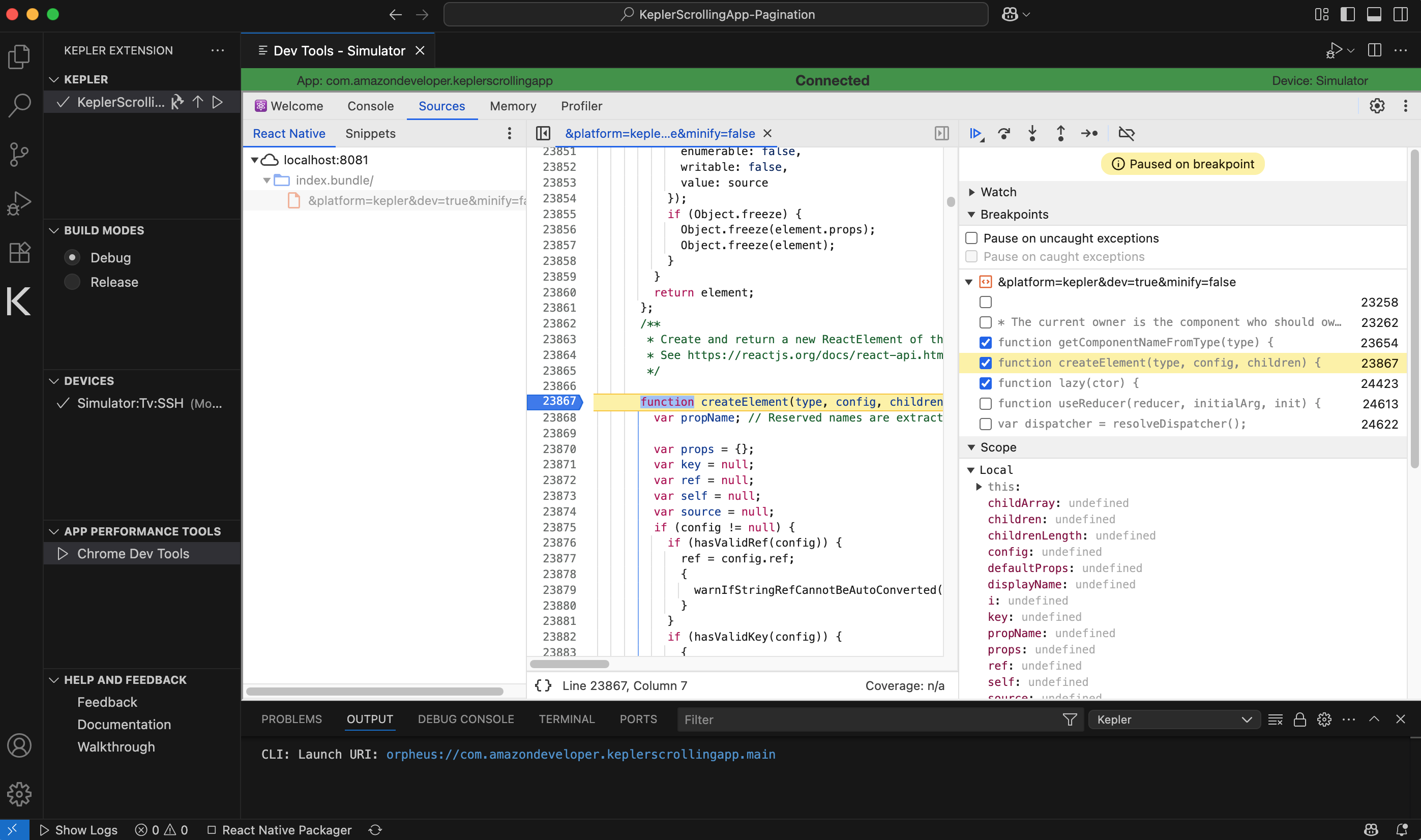
Set a breakpoint or line-by-line debugging
A breakpoint is a designated point in the code where the debugger pauses execution, allowing you to examine the program's state. Visit Chrome for Developers to learn about breakpoints.
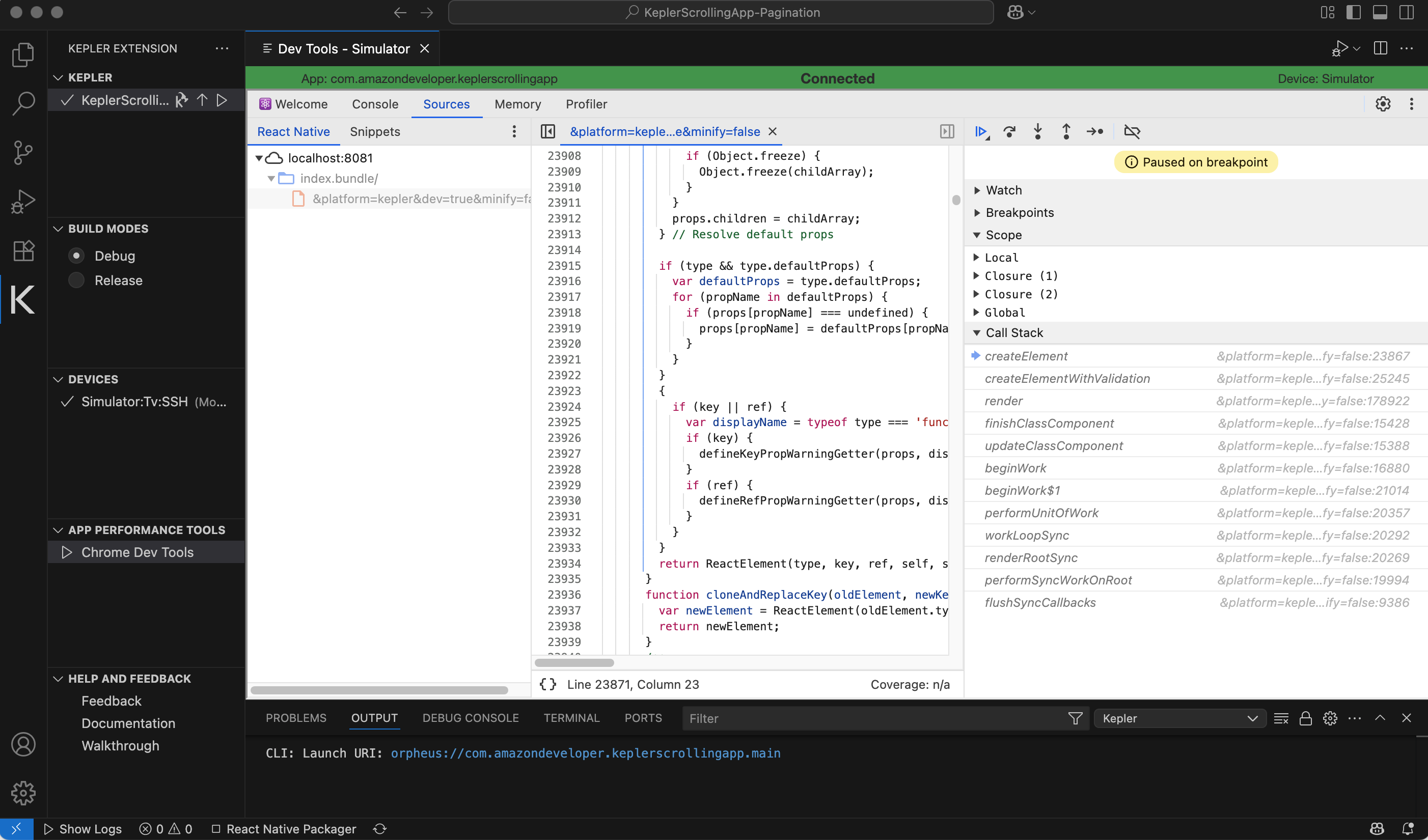
-
Open the JavaScript code file
&platform=kepler&dev=true&minify=false, and search for the code line you copied. Click the code line number to set a breakpoint.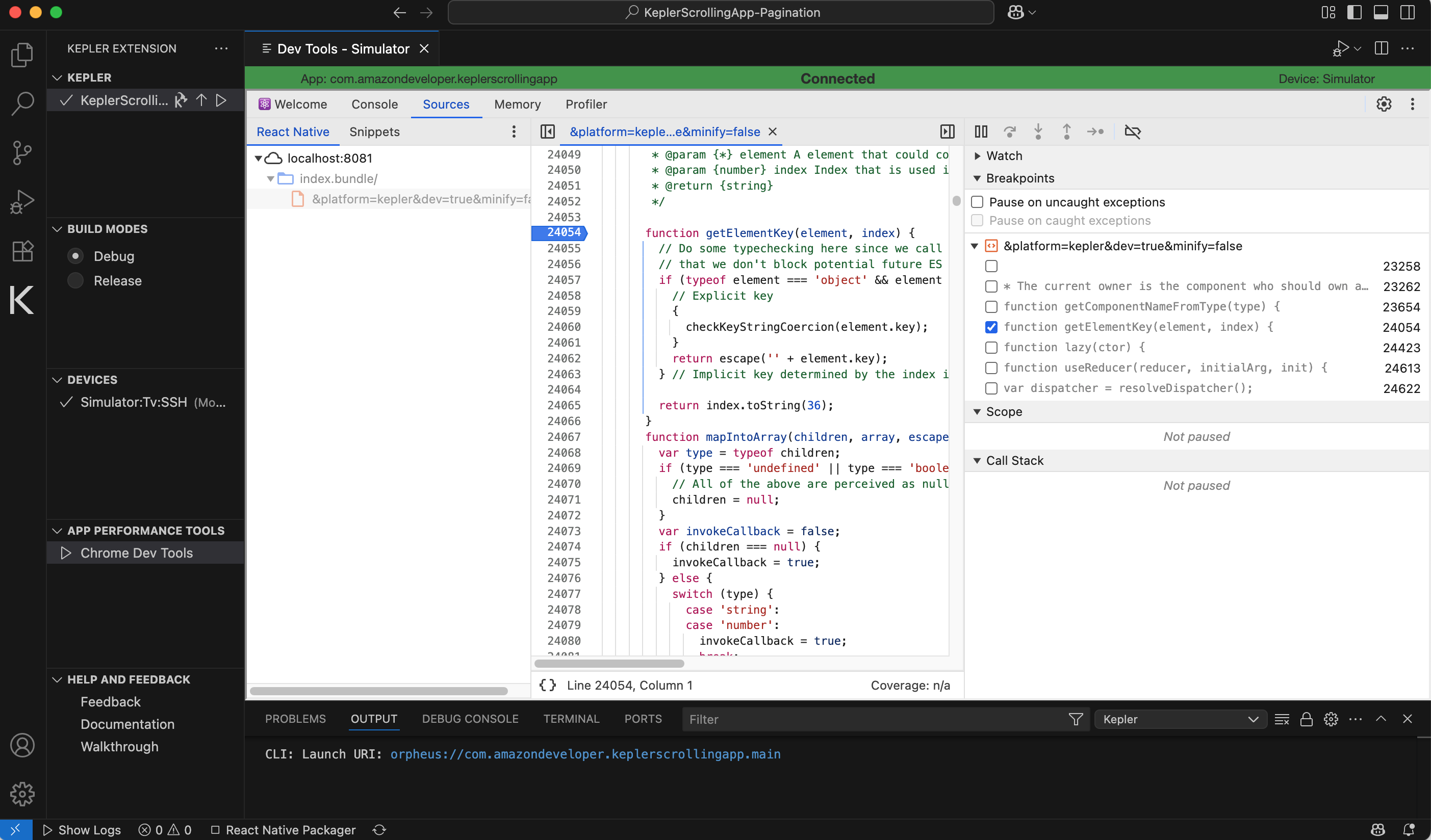
-
Execute the code in your app. Once the breakpoint is hit, the debugger pauses execution.
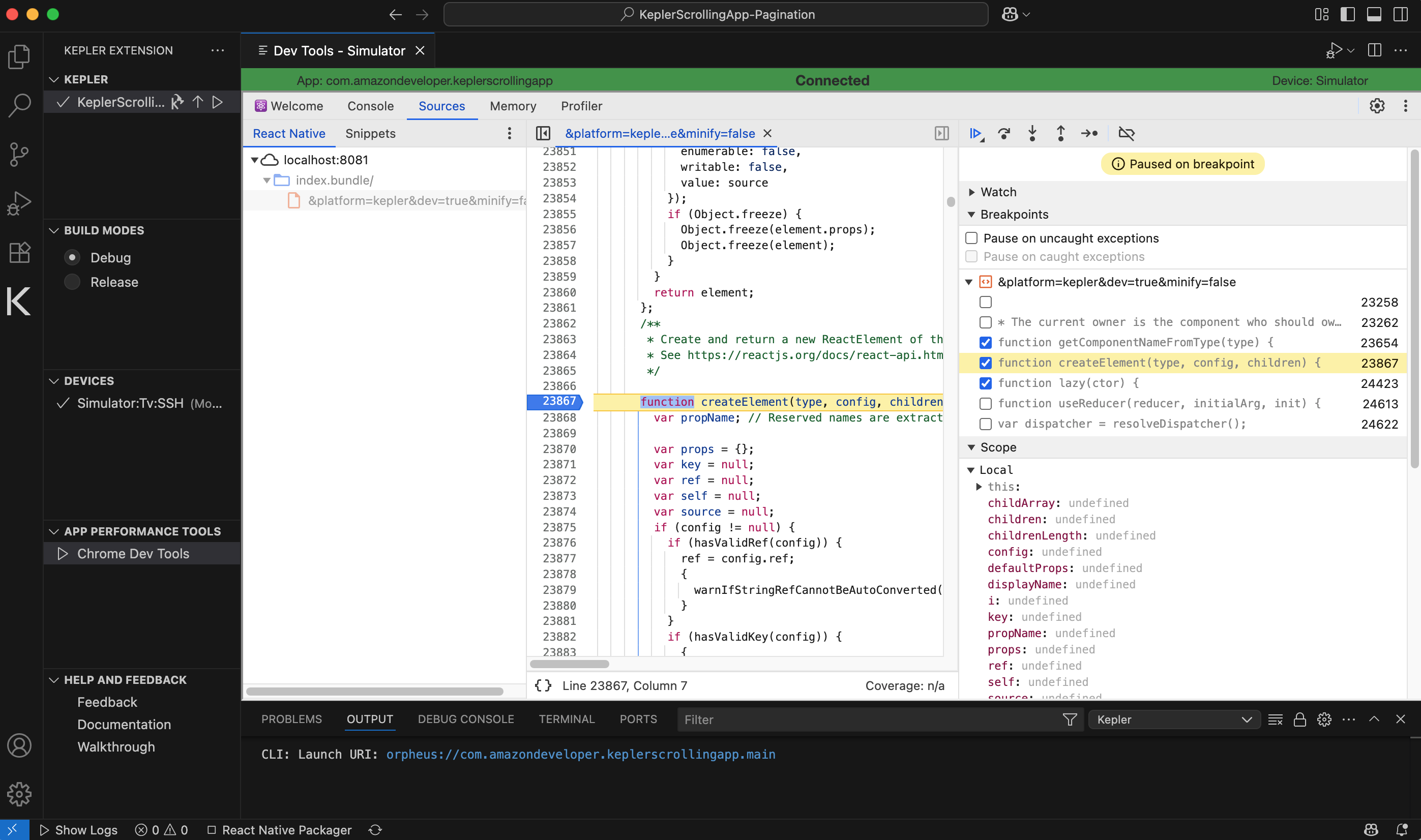
-
Inspect the variables or control program execution as normal.
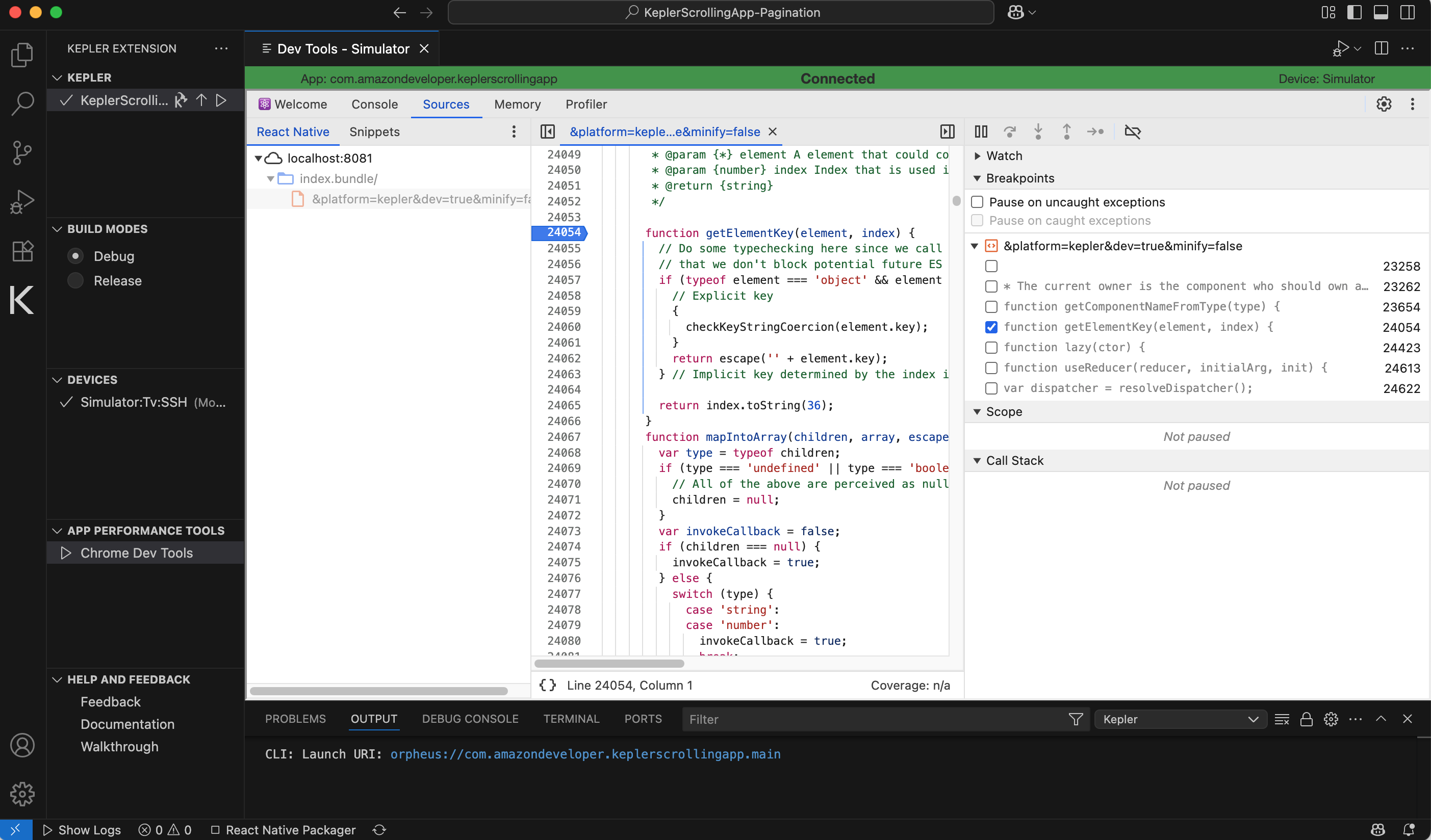
Flipper and CDT support
According to the React Native team, React Native 0.74 discontinues support for Flipper. However, source maps support in CDT is fully functional in React Native 0.73, and is available for React Native for Vega when updated to React Native 0.73.
Related topics
Last updated: Oct 31, 2025
